


Biemans Trophymarker
On this page, we’ll help you with the installation of your ATP-300 Pro labelprinter. We recommend you to follow the instructions below. But first, please carefully inspect the packaging and printer upon receiving the ATP-300 Pro printer and:
- Place the printer on a flat and secure surface;
- Make sure the power switch is turned off;
- Connect the printer to the computer with the provided USB cable (or an ethernet cable);
- Plug the power cord into the power cord socket at the rear end of the printer;
- Then plug the power cord into a properly grounded power outlet and turn the power switch on.
1 | Setup your printer
The first thing to do is to setup your printer. First, you insert the AR-10 ink ribbon inside your ATP-300 Pro. Next, you place your labels in your printer and then download the driver.
- Slide the black ribbon spindle into a roll of ink ribbon.
- Open the label printer with the green buttons on the sides.
- Open the black ink ribbon cover at the bottom of the top cover.
- Place the ink ribbon here with the yellow side to the left.
Important: first attach the right side. - Now open the black cover on the top cover.
- Slide a black ribbon spindle into a cardboard core.
- Place the black ribbon spindle with a waste roll here.
- Pull the ink ribbon along the print head and attach it to the waste roll.
For example with a piece of adhesive tape. - Optional: check with a label or piece of tape whether the ink is on the outside.
- Close both black covers and then the cover of the label printer.
 Watch the video instructions in German here: https://vimeo.com/423114178
- Open the label printer with the green buttons on the sides.
- Make sure the (square) lock of the label holder is set to open.
The locking is located at the back of the label printer, just before the black label holders.
The label holders now automatically shift to the middle. - Slide the label holders apart and place a roll of labels between them.
- Pull the labels over the grey feed roller at the front.
- Slide the black label guides up to the edges of the labels.
Make sure the label guides are not set too wide or too tight. - Finally, close the top cover of the label printer.
Watch the video instructions in German here: https://vimeo.com/422814079
2 | Download label software
When your printer is all set, you’ll need the right label software to start printing. This can either be done with QlickPrint or DataPrint. With DataPrint you can design and print text-only trophy labels, whereas QlickPrint offers the possibility to design and print trophy labels with text and images.
Download Altec DataPrint to create and print text-only trophy labels. Contact Biemans for the activation code.
3 | Download label templates
Printer – check! Software – check! You’re now good to go to print your trophy labels. Make sure to download our label templates to help you in your design process.
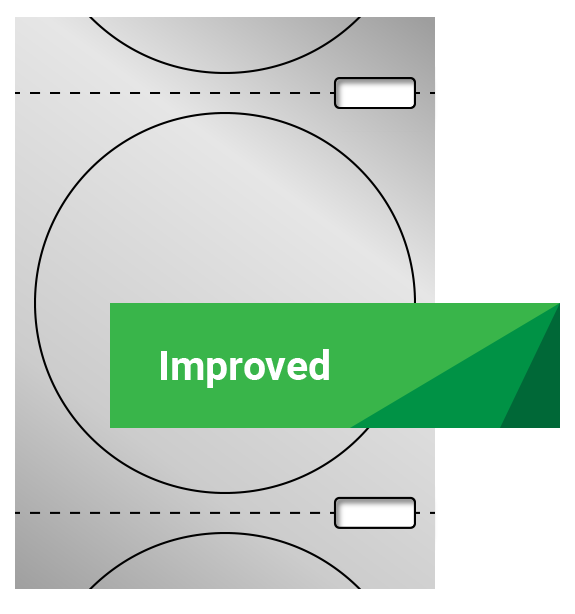
Improved labels
You can recognize the new improved labels by the detection method (gaps) and tear-off perforation between the labels to easily tear them off after printing.
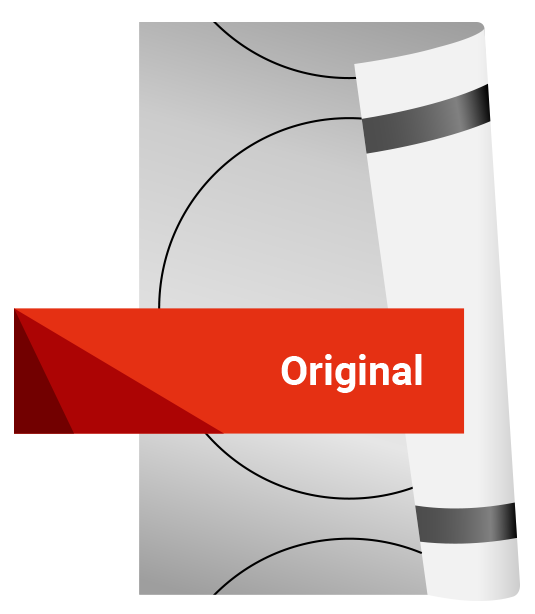 Original labels
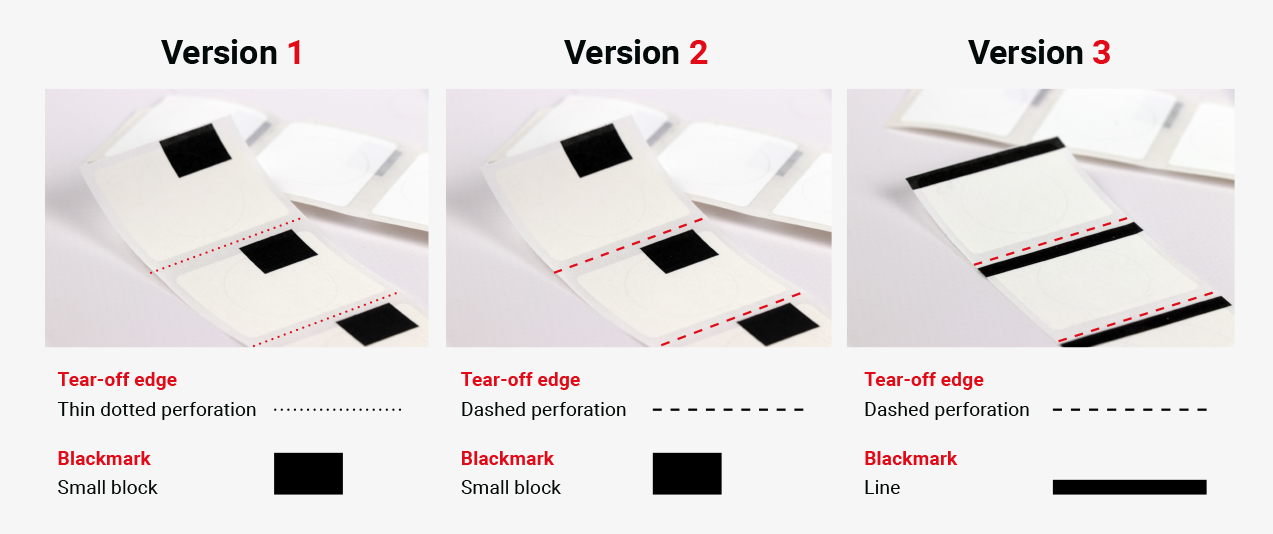
Our original labels can be recognized by the blackmark on the back of the liner. See the overview below of all round labels, available in gold, silver, bronze and transparent.
4 | Support & Downloads
Need support? You’re always free to get in touch with us at Biemans with your questions, if one of the items below can’t answer them. You can call us at T (+31) (0)161 22 61 26